PRIVATE BROWSER PHOTO TOOL
Add a photo date overlay
Turn a hidden photo date into a visible caption. Choose a date-only or date-and-time overlay, check the source date, and preview the placement before you download. Photo processing stays in your browser, and your original file remains unchanged.
Try it on your photo →Compare the styles ↓Compare date overlays on a photo
These format previews use the same sample date, 27 October 2026 at 16:28:09, so you can compare punctuation and length. The sample is illustrative; your own overlay should use the date you have checked in the editor.
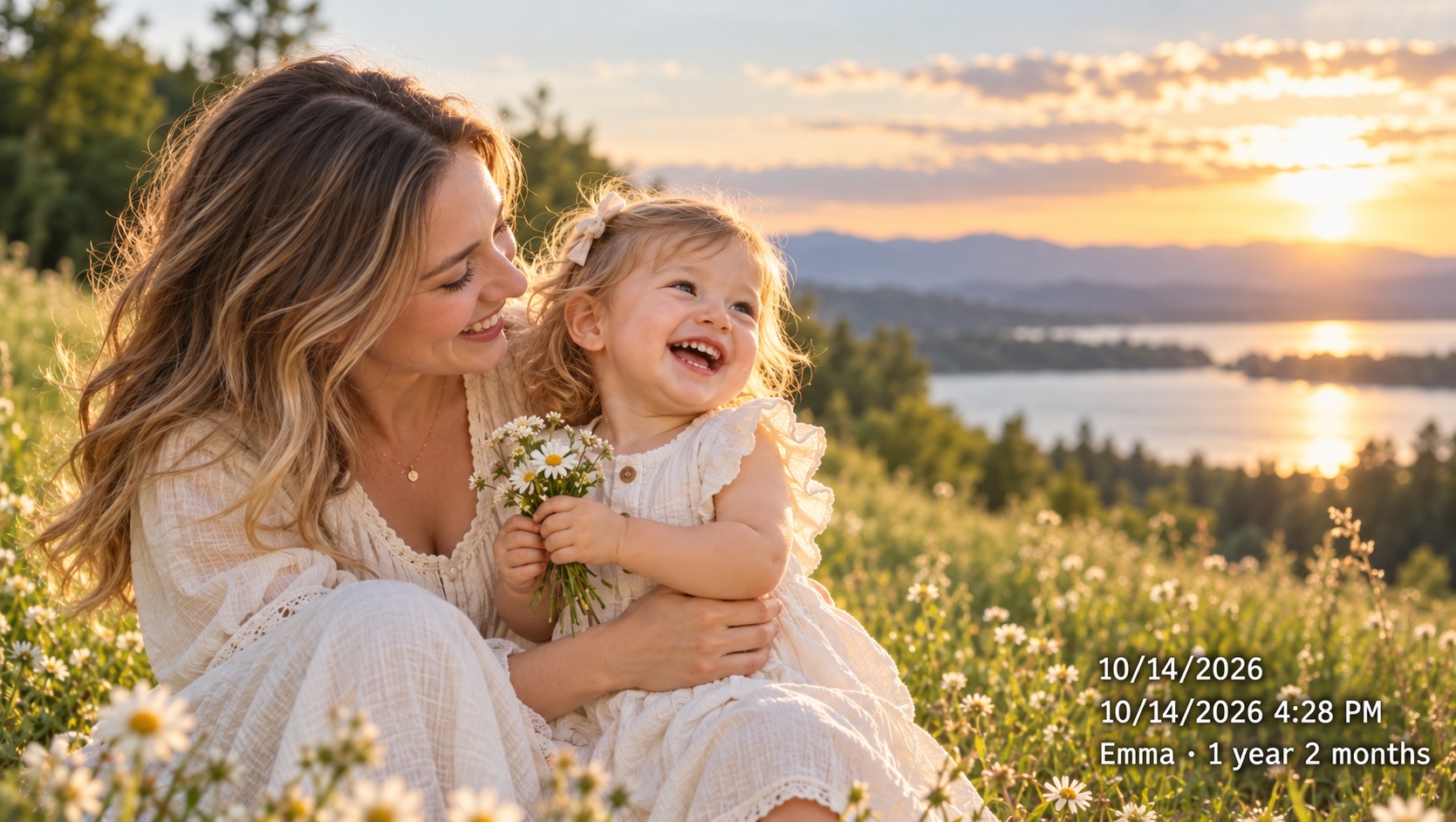 2026.10.27
Family album
YYYY.MM.DDA short dotted date keeps a family memory easy to place without adding an unnecessary clock time.
Try this format in the editor →2026-10-27 16:28:09Detailed photo record
YYYY-MM-DD HH:mm:ssInclude seconds when comparing a sequence. A visible caption is a label, not independent proof of when a photo was taken.
Try this format in the editor →2026/10/27Everyday sharing
YYYY/MM/DDA year-first slash format is compact and keeps the year obvious when an image leaves its original album.
Try this format in the editor →10/27/2026 04:28 PMUS date and time
MM/DD/YYYY hh:mm AM/PMUse month-first order and a 12-hour clock for readers who expect familiar US date conventions.
Try this format in the editor →27/10/2026Day-first album
DD/MM/YYYYChoose day-first order for an audience that reads dates this way. Keep the convention consistent across the whole collection.
Try this format in the editor →2026年10月27日Chinese date
YYYY年MM月DD日Written year, month and day markers make the order explicit for Chinese-language family albums and prints.
Try this format in the editor →20261027Compact date
YYYYMMDDEight digits take less horizontal room. This works for a repeatable record system when readers already know the order.
Try this format in the editor →Trip · 2026.10.27Custom caption · Pro
Trip · YYYY.MM.DDAdd a short fixed label with Pro custom formatting. Keep personal details out of captions you intend to share publicly.
Explore Pro custom formats →What a photo date overlay does
A photo date overlay puts a readable date directly into the pixels of a new image. The caption remains visible when that JPEG is printed, added to a family album, or shared through an app that removes metadata. This is useful when the viewer needs context without opening a file-information panel. It does not change the original photo or rewrite its EXIF capture time. Keep the source file separately if you also need its original metadata.
Start with the right date source
Select a photo in the editor and inspect the date source before generating a stamp. The tool reads an EXIF capture date when one is available. If there is no readable capture date, it falls back to file time and identifies that fallback. File time can reflect a download, copy, or export rather than the moment the shutter was pressed. A screenshot or picture received through a messaging app deserves particular attention. Pro allows a working-date correction when you know the intended date.
Choose a date format that fits the purpose
For a family album, a short YYYY.MM.DD caption usually gives enough context. For a sequence of progress photos, YYYY-MM-DD HH:mm:ss makes the displayed order more detailed. A 12-hour option adds AM or PM, while the 24-hour option avoids that extra label. Use one date order throughout a batch so readers do not have to guess whether the first number means a month or a day. A visible date is descriptive text, not authentication or a guarantee that a camera clock was correct.
Place the overlay without hiding the subject
Choose a corner or a centered position and adjust the margin in the editor. The white lettering has a dark translucent backing, which separates it from bright skies, patterned clothing, and dark interiors. Check faces, signs, and other important details before exporting. A longer date-and-time caption needs more horizontal space than a date alone. The editor scales the stamp with the image and shrinks long captions to fit. Inspect the full preview rather than judging legibility only from a small thumbnail.
Generate, inspect, and save a separate copy
After choosing the format and position, generate the stamped preview and inspect its date and edges. Download a new JPEG when it looks right. Free supports five photos per batch and individual JPEG downloads at the original pixel dimensions, with higher JPEG compression. Pro adds batch and ZIP export, higher JPEG quality, custom formats, working-date edits, and baby age stamps. Both plans process photo pixels locally in the browser. Keep an unmodified original so that you can make a different overlay later without stamping an already stamped copy.
Frequently asked questions
Can I add a date overlay to a photo for free?
Yes. The free editor accepts up to five photos per batch and lets you download individual stamped JPEGs without an account. The output keeps the original pixel dimensions with higher JPEG compression. Pro is optional for features such as ZIP export, custom formats, and date corrections.
What happens if my photo has no EXIF date?
The editor uses file time as a fallback and labels that source. Check it carefully: it may be the date a copy was saved. If you know the correct date, Pro lets you adjust the working date before stamping. The tool cannot recover a missing capture time with certainty.
Will the date stay visible when I print the picture?
Yes. The overlay is drawn into the downloaded JPEG pixels, so it is visible without a metadata viewer. Preview the placement and leave enough room for any print cropping. Keep the original separately if you want an unstamped version.
Does the overlay change my original photo or upload it?
Photo decoding and stamping happen in your browser, and the tool downloads a separate JPEG. It does not overwrite the original photo or upload its pixels to a photo-processing server. The visible caption and the source EXIF metadata are different things.
Can I show the time as well as the date?
Yes. Choose a date-and-time preset with minutes or seconds, and select 12-hour or 24-hour notation where available. For an album, date-only may be clearer; for a sequence, time can help readers distinguish images taken on the same day.